How to edit Chinese-English wedding invitations on a Mac
For a self-edit invitation, details card and tea ceremony card on a Mac, Double Joy provides one matching offline kit. Open its HTML editor in desktop Chrome, enter English and Chinese separately, choose a one-face or front-and-reverse invitation, then export a 5 × 7 inch PDF. The digital ZIP costs US$12 before applicable taxes.
This walkthrough documents our own product. It is useful if you already have checked bilingual wording and want PDF files you can keep. The verified editing environment is desktop Google Chrome on a Mac. Other browsers, Windows and mobile editing have not been verified.
What you can inspect before buying
- Open the free two-page sample and date-change checklist PDF. It contains original example artwork and a reusable checking exercise; it is not the full editable kit.
- Watch the actual v4 editing and export demonstrations below. It uses illustrative event details and shows real editor states.
- Read the Double Joy product, license and purchase details. The creator and seller is Useful Shelf.
One matching set, three separate checks
| Card | What it is for | What to verify |
|---|---|---|
| Invitation | The main event, with English and Chinese on one face or opposite faces | Names, main date and time, venue and wording in both languages |
| Details | Additional guest instructions in the same visual style | Addresses, RSVP instructions and any separate arrival information |
| Tea ceremony | The tea ceremony as its own labeled event | Its own time and place; do not assume they match the main event |
Step 1: prepare the wording and open the editor
Keep one event note containing the names, calendar dates, times, venues, addresses and RSVP instructions. If you are still organizing the text, start with the three-card wording examples and event checker; check each language before copying it into the editor. After purchase, download and unzip the kit. Open “Double Joy - Open Me.html” in desktop Chrome on your Mac. The editor runs locally without an editor account or installer.
Enter your checked English and Chinese wording separately. The editor does not translate, proofread, convert typed Chinese characters or convert a lunar date. Traditional and simplified Chinese artwork choices are separate from the text you type.
Step 2: choose the invitation layout and edit each card
Choose both languages on one invitation face when the wording fits comfortably. Choose English front and Chinese reverse when the wording needs more room. Read the one-face versus two-sides layout comparison before fitting long text.
Review the invitation, details and tea ceremony cards separately. A date, address or instruction on one card is not proof that the other cards contain the correct fact. Check Chinese characters, line breaks and punctuation on the actual preview.
Watch a draft being saved and reopened
12-second silent sequence of actual v4 UI captures showing Save draft and Open draft. Pauses are shortened; sample names, venues and dates are illustrative. It is not a completion-time promise.
Text description of the Save draft demonstration
Actual v4 UI captures show the manual Save draft download, a change to the example English names, and Open draft restoring the saved wording. This silent demonstration uses shortened pauses and illustrative event information; it is not a continuous recording or a completion-time promise.
Save a draft and continue later
In v4, select Save draft to download a local JSON file. Next time, open the editor and choose Open draft to select it. Names, both languages, layout, invitation details, schedule, RSVP and tea ceremony fields are restored. Opening replaces current fields, so save current work first. Recheck every card before exporting. There is no autosave.
In this fictional example, Mia Chen and Leo Lin were saved, the visible names were changed, and opening the saved draft restored those names. Opening a draft replaces the current fields and resets the proof approval. Check both languages and all event facts again before exporting.
The three still screenshots below come from one checked Save draft → change → Open draft sequence in the current v4 editor. The same downloaded JSON file was reopened: the original names returned, and the proof approval was reset. These are static observations of that test, not a continuous video or a customer result. Names and artwork are fictional sample material. The current demonstration above shows this same manual Save/Open workflow as condensed UI steps.
Save the original wording
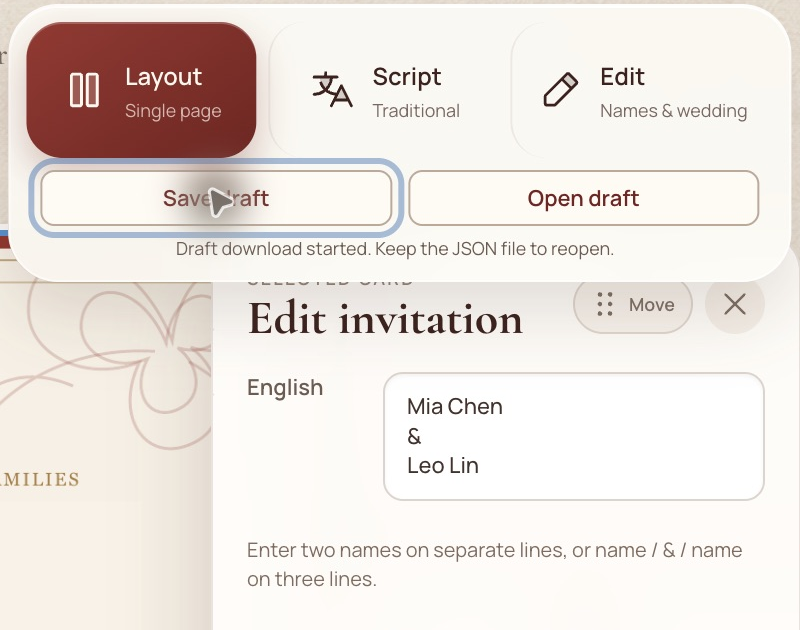
Save draft downloaded a local JSON file while the original fictional names were present. Change the visible fields
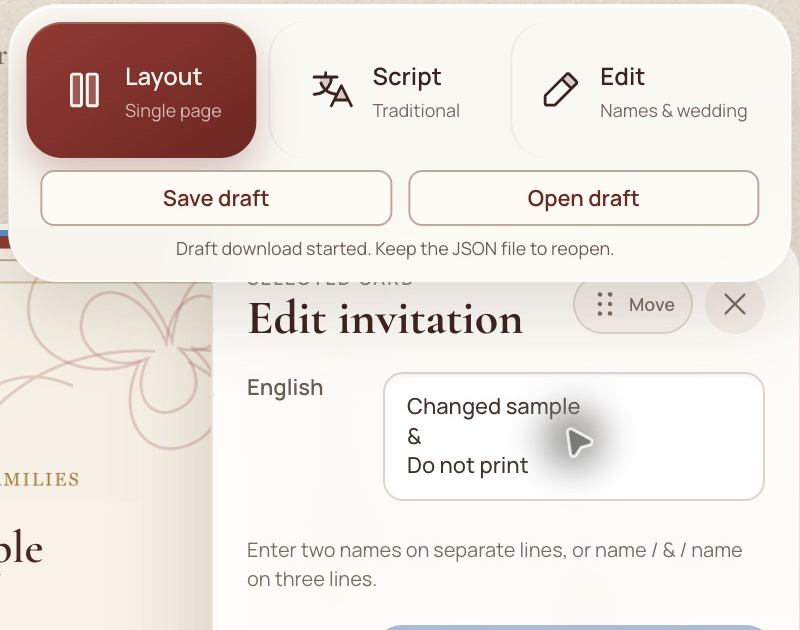
The names were deliberately changed to “Changed sample” and “Do not print”. The previously saved JSON was kept. Open the same saved draft
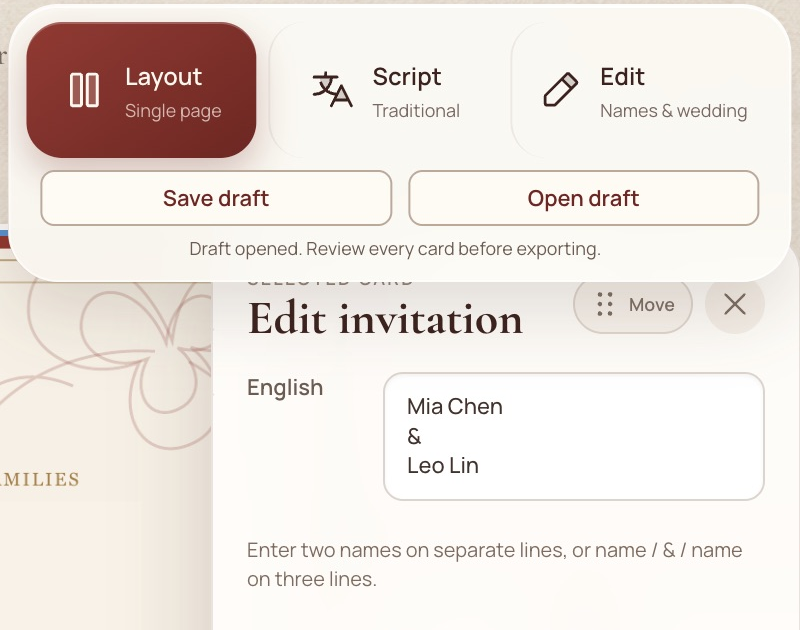
Opening that same JSON restored the original names. The checked sequence also reset proof approval; review every card again before export.
Actual product test on 4 October 2026, in desktop Chrome on macOS. Fictional names and AI-assisted card artwork. These images demonstrate a draft-restoration check; they are not a final wording or physical print proof. Save and Open are manual, with no autosave. Recheck both languages and all event facts after opening.
Which file keeps the wedding invitation editable?
The purchased template is an offline HTML editor. Its exported PDF is the finished page artwork. A saved draft is a third, separate file. Keeping the PDF alone does not preserve editable wording.
| File | Use it for | What to keep in mind |
|---|---|---|
| Offline HTML editor | Open the unzipped editor in desktop Chrome on your Mac; enter and revise both languages. | Keep the original kit. Opening the editor does not automatically reload the last wording. |
| Saved JSON draft | Select Save draft to download your current fields and layout; Open draft restores them into the editor. | Save again after changes. Opening replaces current fields and resets proof approval. There is no autosave. |
| Exported PDF | Reopen all pages, approve the actual file, and send that version to guests or your chosen printer. | Static raster page artwork, not a fillable form or editable text PDF. It cannot be imported as a draft; revise in the editor and export again. |
Before closing: save the draft and use a clear revision name, such as wedding-draft-03.json. Next time, open the editor, open that draft, and compare the restored facts with your event record. Once checked, export a new PDF and approve its own filename. Sample filenames here are illustrative; they are not automatic editor naming rules.
Step 3: export, reopen and keep the final PDF
The one-face invitation produces a three-page set: invitation, details and tea ceremony. English front and Chinese reverse produce four pages. The PDF output is 5 × 7 inches. Export, save and reopen every page, then compare it with the event note using the PDF proofing checklist.
Before closing, choose Save draft and keep the JSON file. Use Open draft next time to continue. There is no autosave, and a PDF cannot be imported as a draft. For printed stationery, confirm the printer’s trim, bleed, color and front/reverse requirements and review a physical proof. Double Joy has not undergone a physical print test.
When this kit fits your workflow
Choose it when you want one self-edit digital set, can provide and check both languages, can work in desktop Chrome on a Mac, and will keep the exported PDFs. If your project requires verified mobile editing, translated wording or physical printing, those requirements are outside this version’s verified scope.
Double Joy Chinese-English Wedding Invitation Template Kit
US$12 before applicable taxes · Digital ZIP · Offline HTML editor · Invitation, details and tea ceremony cards.
All product links point to our own kit. The sample checklist can be used without purchasing.